
How to Manage your Sessions
Our cancellation policy requires account-based cancellations. We have limited front desk coverage, and this ensures your cancellation can be processed right away.
When cancellations are sent by text or email, especially outside of studio hours, the studio is unable to process the cancellation immediately, which impacts attendance and utilization.
By canceling directly through your Somaspace account:
You can early or late cancel with immediate confirmation
The 24-hour cancellation policy is tracked accurately
Clients receive a fair and consistent booking experience
Your account also shows you everything the front desk sees. Current availability, open spots and waitlist options are all there. If a time you want is full, you can add yourself to the waitlist directly without having to call, text or email.
You have two ways to do this: here on our website (click LOGIN in the top navigation) or the Somaspace app (Apple/Android).
Via our Somaspace app
Manage your sessions from your phone. Available for Apple and Android.
Watch a demo using our app >
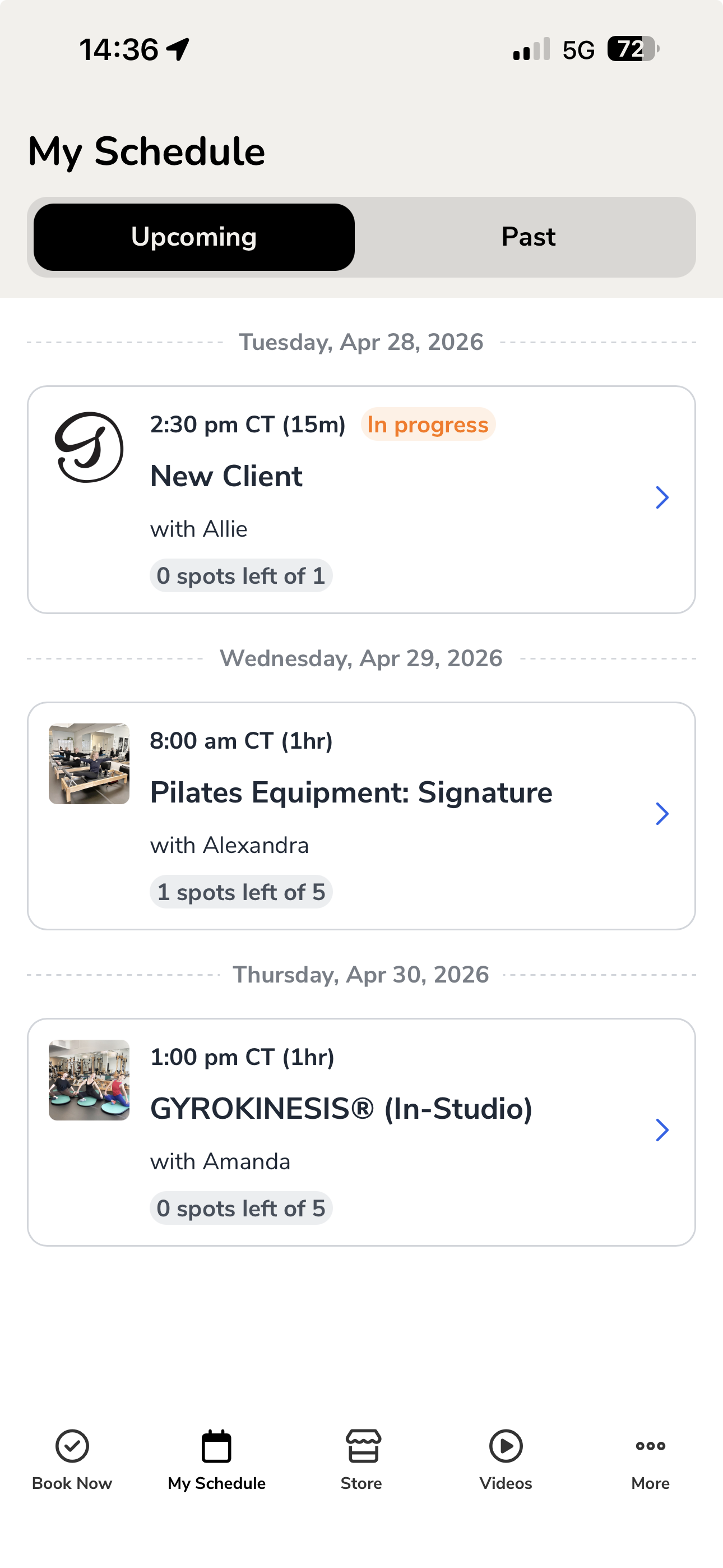
Download the Somaspace app from the App Store or Google Play (links below). Your app login is separate from the web scheduler. Select "Forgot Your Password" the first time to set it up.
Select My Schedule in the navigation bar. The page will open to your Upcoming Schedule.
Tap the session you want to cancel to open the session details. Select Cancel booking.
Select Cancel service to confirm. A confirmation screen will appear when the cancellation is complete.
Select Book Now to find a new time directly in the app.
Via our Website
Takes about 60 seconds from wherever you are on the site.
Watch a demo here >
Select Sign In in the navigation bar. First time? Select "Forgot Your Password" to create your login.
Once signed in, select My Schedule in the navigation bar. The page will open to your Upcoming Schedule.
Find the session you want to cancel. Select the three-dot menu to the right of that session.
Choose Cancel Session. You will be asked to confirm. Select Cancel service(s) to complete the cancellation.
To verify it went through, go to My Profile in the navigation bar. The page defaults to Overview. Your cancelled session will appear there if it was successful.
When you are ready to rebook, select Book Now in the navigation bar.
THANK YOU!
If you do not receive a confirmation on screen, your session has not been cancelled. Try again or reach out to the studio before your session time.
Our 24-hour cancellation policy applies to all session types. Sessions cancelled within that window are charged in full.
If you have any trouble getting logged in or have questions, reach out. We are glad to help you get set up!